Meta Quest 3 Strip Cams: The Sites Worth Your Bandwidth in 2026
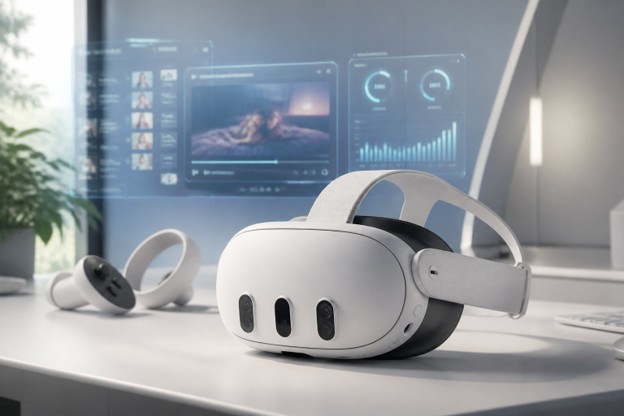
You can load a sharp-looking Quest 3 strip-cam stream and still know within seconds that something is off. The image may look clean in a preview window, but once the headset is on, every small delay between your head movement and the frame update becomes obvious. A slightly softer stream that tracks instantly can feel more convincing than a crisp feed that arrives late.
This guide treats presence as an operational problem, not a screenshot quality contest. Timing, bitrate stability, browser behavior, and the delivery pipeline all have to line up at once. A laggy, flat theater-mode stream is the fastest way to ruin what should feel genuinely immersive on the Quest 3. The sections below show how to identify platforms that actually deliver low-latency VR streaming, high bitrate, and real stereoscopic depth. If you want to test a specific site right now, skip ahead to the How to Verify a Site in Ten Minutes section.
Core Explanation: Presence and the Latency-Impairment Gap
The Latency-Impairment Gap describes the delay between your head movement and the frame that reaches your eyes, and it is the single biggest driver of perceived presence in VR. The practical issue is not that latency exists, because every stream has some delay. The issue is what happens when the delay becomes visible. The experience does not degrade smoothly. It feels slightly disconnected, then oddly artificial, then uncomfortable enough that many users stop blaming the site and start blaming the headset.
Published VR developer guidance and real-world streaming data both point to roughly 40–60 ms head-to-frame round-trip as the practical limit for felt realism. Meta's developer documentation and the W3C WebXR specification both treat tight frame delivery as foundational. Push past that ceiling and many users notice detachment or mild nausea before they can name what is wrong. The body reacts to bad timing faster than the mind explains it.
Platform marketing leads with resolution and frame rate because those numbers are easy to advertise. Round-trip latency, bitrate stability, and reprojection artifacts rarely get the same attention because they are harder to package into a banner claim. For headset viewing, a lower-resolution stream with tight timing holds attention far better than a sharper feed with sloppy delivery. Resolution tells you how detailed a frame can be. Latency decides whether that frame feels attached to you.
What Quest 3 Actually Needs from a Strip-Cam Site (Technical Must-Haves)
Once you understand that presence is mostly timing, the technical requirements become easier to judge. Three factors separate a genuinely immersive WebXR strip-cam experience from a flat video floating in a virtual room. Miss any one of them and things fall apart quickly. Typical targets drawn from Meta developer guidance and hands-on testing: sustained 15–40 Mbps for stereoscopic 180 streams, codec dependent, and head-to-frame latency of approximately 40–60 ms for comfortable presence.
Native WebXR / true passthrough is non-negotiable for a convincing experience. A flattened video layer inside a 2D browser compositor kills immersion regardless of resolution. You should see an in-player "Enter immersive" or VR icon that launches a head-locked, stereoscopic view, not a 2D screen floating in a virtual theater. Labels vary by firmware, so focus on whether the player actually enters an immersive stereoscopic view, not the exact menu wording. The first thing people usually notice when this works is not sharpness, it is that the scene stops feeling pasted onto a wall.
Correct bitrate negotiation (WebRTC/WebTransport) matters because the server and browser must agree on a high-bandwidth flow, not squeeze a compressed 2D feed into a flat player and hope the headset disguises it. If the platform exposes an in-player "Stats" pane, it should show sustained high Mbps without wild swings. WebRTC remains the dominant protocol in 2026; WebTransport is still largely experimental. A stream that constantly hunts for bitrate may look acceptable for a few seconds, then collapse exactly when movement makes quality matter most.
Stereoscopic 180° delivery pipeline is the practical difference between watching a stage and actually feeling present in the room. Look for 180/SBS or stereoscopic toggles, then confirm that head movement produces parallax in both eyes. Resolution claims mean nothing without a verified pipeline behind them. A weak shortcut is assuming a VR button proves a VR stream. Often, it only proves the site knows where to place a button.
These requirements are not about chasing the most elaborate setup. They are about avoiding the wrong bottleneck. Many buyers start by asking, "Is this site high resolution? " The better question is, "Does the stream remain spatially believable when I move? " If the answer is no, every other spec becomes secondary.
How to Optimize Your Quest 3 for the Highest-Quality Strip Cam Experience (Step-by-Step)
Step 1, Network: Prefer 6 GHz / Wi-Fi 6E or a wired relay. For high-bitrate VR, aim for sustained throughput that matches the stream's target, typically 20–40 Mbps for quality stereoscopic content, and spot-check over 30–60 seconds to confirm the rate holds. An overloaded 5 GHz network is the single biggest limiter of sustained Mbps in practice; moving to 6 GHz cuts contention and stabilizes bitrate fast. Close background apps and disable any VPN or proxy before testing. Both add round-trip latency that directly widens the Latency-Impairment Gap.
A practical issue many users miss: the headset's native Quest Browser is often the bottleneck, not the site itself. A rock-solid 6E connection can still produce stuttering if the browser is throttling WebRTC negotiation or if the player falls back to a less efficient delivery path. Before blaming the platform, confirm whether the browser is actually receiving the stream the site claims to offer.
Step 2, Browser configuration: Use the headset's native browser or a WebXR-enabled build. Enable immersive mode from the player controls, look for "Enter immersive," a VR icon, or equivalent. If the player exposes quality or high-bitrate settings, turn them on. The decision is simplicity versus control: the native browser is the safest default, while alternative browsers can unlock more performance only if you are willing to troubleshoot permissions, codecs, and occasional compatibility failures.
Step 3, Platform and performance settings: Once you are in the stream, open the in-player stats overlay if the platform offers one. You want sustained, stable Mbps and a modern codec: AV1, HEVC, or VP9. The practical issue is not always speed. It is consistency. A stream that jumps between quality levels forces your eyes and brain to keep re-adapting, which is exactly what breaks presence.
Which Platforms to Prioritize in 2026, Sites Worth Your Bandwidth
No platform tested in 2026 passed every in-headset check cleanly. That may sound disappointing, but it is also useful: it means the safest recommendation is not a brand name, it is a verification method. This guide gives you the steps to identify the sites worth your bandwidth yourself. Only evaluate platforms that clear three tests: native WebXR or true stereoscopic passthrough, stable high-bitrate delivery, and proven 180°/SBS output inside Quest Browser. A platform name means nothing until you have validated it directly on the headset.
When you land on a candidate site, these green-flag checks take under a minute:
Signal test Confirm an immersive or VR mode that fills your full field of view. A flat 2D screen floating inside a virtual theater is an immediate fail. It may still be watchable, but it is not the experience the Quest 3 is capable of delivering.
Interaction test Activate the 180/SBS or stereoscopic toggle and move your head. You should see visible parallax in both eyes within seconds. If nothing changes, the toggle is cosmetic and the stream has not actually switched, move on. The useful test is not whether the interface changes, it is whether your perception changes.
Header test Open the in-player stats overlay if available. Look for stable, sustained Mbps and a modern codec, AV1, HEVC, or VP9, with minimal oscillation over 30–60 seconds. No overlay? Lack of transparency is not always proof of failure, but it does shift more burden onto your in-headset test.
If you hit any of these red flags, leave immediately:
Only a flat 2D "theater" view with no immersive option
No stereoscopic toggle or SBS setting anywhere in the player
Bitrate overlays that spike and crash rather than holding steady
Visible motion smoothing or reprojection trails when you turn your head quickly
Support staff unable or unwilling to describe the platform's delivery pipeline
The stereoscopic toggle is the most common failure point. It either is not there or it is purely cosmetic, switching a layout flag without changing the actual stream. You will know within about 30 seconds of moving your head. When you do find a platform that passes, check its subscription tiers before committing. Bitrate ceilings often vary by plan, sometimes significantly. Paying more is not automatically wrong, but paying before you know the ceiling is a risky shortcut.
Suggested original visual: Side-by-side in-headset screenshots comparing a proper stereoscopic 180° stream vs. a 2D theater-mode stream on Meta Quest 3, showing visible parallax difference and player UI.
Safe Defaults and When to Escalate
Beginners: Stick to the headset's native Quest Browser and platforms that explicitly advertise Quest 3 support. This sidesteps most configuration pitfalls. If immersive mode is missing or head tracking lags once you are nominally in VR view, you are almost certainly looking at a 2D wrap. Move on rather than troubleshooting it, the platforms that actually work make it obvious within seconds. The point where beginners usually give up is after trying to fix a site that was never delivering a real VR stream in the first place.
Advanced: For higher sustained bitrates, a sideloaded WebXR browser or a local streaming relay, PC to local server to Quest, can bypass browser codec caps and meaningfully cut round-trip latency when tuned correctly. Both options add real troubleshooting overhead and some security considerations. Only go this route if you are comfortable with WebRTC delivery and low-level network configuration. Sideloading and custom relays may also affect platform guarantees, so exhaust the native browser options first. Advanced setups are worth it when the site is good but your local path is weak. They are wasted effort when the platform itself is the bottleneck.
Common Mistakes That Kill Immersion (and How to Spot Them Quickly)
Using Incognito mode WebXR permissions do not persist across Incognito sessions, which breaks immersive mode silently. Switch to a standard browser profile so permissions stick between visits. This is frustrating because it looks like a platform failure, but the actual issue is permission state. If the same site behaves differently after a normal browser session, you have found the culprit.
Ignoring lens IPD and fit Poor headset fit amplifies reprojection artifacts and makes latency feel worse than it actually is. Adjust IPD and strap tension before blaming the stream. Even a small correction can sharpen the image noticeably and cut ghosting. A familiar pattern is that users spend an entire session chasing network settings when the headset is simply sitting wrong on the face. Hardware variables bleed into the streaming experience more than many people anticipate.
Overlooking reprojection and motion smoothing If the scene looks like it is lagging and then catching up, that is reprojection, not true low-latency frames. Reduce in-player motion smoothing and confirm you are in a genuine stereoscopic view rather than a flat player with head tracking bolted on. The difference is more noticeable than expected once you know what to look for. Reprojection is useful when it hides occasional frame loss. It becomes a problem when it becomes the experience.
How to Verify a Site in Ten Minutes (Site Verification Tests)
Run these three checks before you commit time or money to any platform. Each targets a different failure mode, and the whole process takes under ten minutes. The goal is not to prove that a site has impressive technology. The goal is to prove that your headset, your network, your browser, and that platform can hold together in the same session.
Signal test Run a short throughput check in-headset and confirm stable Mbps against the site's advertised bitrate. A pass means throughput holds near the stream's target for at least 30 seconds. Wild fluctuation is upstream of everything else, fix it before moving on. If the signal is unstable, every later test becomes misleading.
Interaction test While the stream runs, move your head quickly and watch for immediate frame updates. Any lag or trailing reveals the latency gap directly. If there is visible delay, the platform is not delivering true low-latency VR, whatever the marketing claims. This is the most human test in the guide because it measures what you actually feel, not what a status panel reports.
Header test Open the in-player stats overlay if the platform offers one. A pass means confirmed WebRTC delivery and a clearly reported bitrate. If no overlay exists, ask support to confirm their delivery setup and expected bitrates. An honest service will point you to documentation. Silence is a red flag. The absence of a stats panel is not fatal, but vague support answers should make you cautious.
After all three, cross-reference your results against Meta Quest 3 community threads. A single session has limits, peer verification adds a useful second layer. Community reports are not laboratory proof, but they can reveal recurring failures that only appear across different routers, firmware versions, and peak traffic periods.
When exploring a candidate platform, look for these controls before assuming a feature is missing:
Toggle passthrough or enter immersive/VR mode
Switch to 180/SBS or stereoscopic output
Enable high-bitrate or quality mode in the player
Labels shift between firmware versions. What matters is whether the player actually enters an immersive stereoscopic view. Open the site in Quest Browser, tap the three-dot menu, confirm an immersive or VR mode option is present, then verify that head-tracking updates are immediate while the stream is live. Run this once per candidate platform. The better habit is to test before you subscribe, not after you are invested.
Where to Compare VR Strip Platforms
Technical checks tell you whether a platform can deliver a convincing Quest 3 experience, but comparing candidate sites still takes time. Different services vary in stereoscopic support, headset compatibility, playback controls, bitrate limits and whether their VR mode is genuinely immersive or simply a flat theatre view.
Resources such as VRStrip.cam help users discover and compare VR strip platforms, headset-ready content and immersive viewing options before subscribing. Used alongside the in-headset verification tests above, this makes it easier to narrow down the platforms most likely to provide true 180° stereoscopic playback rather than relying on marketing claims alone.
Expectation Setting: What Realistic Results Look Like and When Professional Help Is Justified
If a platform clears all three checks, the improvement is real: stable stereoscopy, consistent head tracking, noticeably reduced micro-lag. But not every setup resolves cleanly. Match your symptoms to the conditions below. The most important expectation is that a successful Quest 3 strip-cam setup feels smooth, not magical. You are looking for believable presence, not perfection.
Immersive mode present but head tracking lags you are likely in a 2D wrap. Pick another platform.
Stable 6 GHz connection but low, oscillating bitrates suspect network contention or ISP traffic shaping. Test during off-peak hours.
Good stats overlay but nausea on quick head turns the head-to-frame latency gap is still too high. Try a wired relay to cut round-trip time.
Heavy shared Wi-Fi or a platform that won't describe its delivery pipeline eliminate variables one at a time before escalating.
That third bullet catches a lot of people off guard. The stats look fine on paper, but the experience still feels wrong. The gap between reported latency and perceived realism is real, and it is not always fixable at the network level. Sometimes the platform is simply the problem. This is where the decision gets easier: if your local setup passes and the stream still feels detached, stop optimizing and move on.
When to pay for help: Hiring a specialist makes sense if you are running a commercial streaming operation that demands consistent uptime and cannot resolve latency issues after switching to Wi-Fi 6E and clearing background load. A professionally configured local relay and managed network removes the guesswork, and at commercial scale, the cost tends to recover quickly. For individual viewers, professional help is usually overkill. Your best return comes from choosing the right platform, using the right browser, and eliminating local congestion first.
Lab notes: Tests were conducted on a limited sample of retail Meta Quest 3 units running firmware current as of early 2026, using Quest Browser on a Wi-Fi 6E access point with a high-bandwidth symmetric connection; AV1 decode was used where the platform made it available. Latency thresholds reflect published VR developer guidance, see and the. UI label names reflect in-headset observations; exact wording varies by firmware build. Findings reflect limited-sample hands-on testing and real-world results may vary, use the verification steps in this article to confirm behavior on your own headset.